Chromecast · Google TV Tutorial
How to Install IPTV on Google TVComplete guide for GSE Smart IPTV plus APK sideloading
Learn both official and sideloaded installation paths so you can load M3U playlists or Xtream Codes onto Chromecast with Google TV, Sony/Hisense Google TVs, and every device that ships with Google TV built in.
~15 min
Setup time
10 Mbps
Min. speed
GSE • TiviMate • Smarters
Supported apps
Installing IPTV on Google TV is straightforward even if your preferred player is missing from the Google Play Store. This playbook covers the official GSE Smart IPTV flow, sideloading via Downloader, enabling unknown sources, and hardening your device for premium streaming.
Why set up IPTV on Google TV?
- ▹Google TV hardware delivers smooth navigation, Assistant voice control, and native casting so IPTV feels like a first‑party streaming service.
- ▹One subscription unlocks thousands of live channels, films, and series with no need to swap HDMI inputs or juggle multiple remotes.
- ▹The same process works for Chromecast with Google TV dongles and televisions that ship with Google TV built-in—perfect for renters and travellers alike.
Method 1
Add M3U or Xtream Codes in GSE Smart IPTV
Ideal when GSE Smart IPTV is already available for your region in the Google Play Store. You will add playlists, Xtream credentials, and optional EPG data directly within the app.
Needed
Active IPTV subscription
Works on
Any Google TV build
Step 1
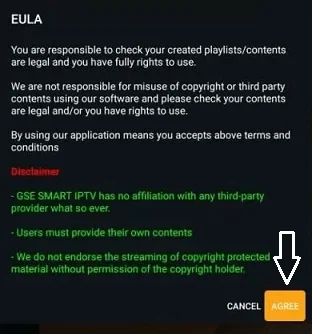
Launch GSE Smart IPTV and accept the terms
Open the GSE Smart IPTV app from your Google TV home screen. If you have not installed it yet, download it from the Google Play Store. On first launch you will see a terms and conditions prompt—review it, select Agree, and you will land on the main dashboard where playlists can be added.
Step 2
Add your IPTV playlist using an M3U URL
Choose Remote Playlist → Add M3U URL. Paste the exact playlist link supplied by your IPTV provider, give it a descriptive name, and save. The app will contact your provider and populate the entire channel lineup automatically.
Step 3
Configure Xtream Codes when required
If your provider uses Xtream Codes authentication, select the Xtream Codes API option instead. Enter the portal/server URL, username, and password exactly as provided. Tap Add/Connect to verify the credentials and sync your channels.
Step 4
Import the EPG program guide
Inside GSE Smart IPTV, open the EPG Program Guide area and paste the EPG URL from your provider. Accurate EPG data turns the channel list into a full electronic program guide with schedules and show information.
Step 5
Start streaming instantly
Return to the Live TV tab, choose any channel group, and begin watching. You can favorite channels, filter categories, and adjust playback quality inside settings.
Method 2
Sideload IPTV APKs on Google TV
Use this path when your IPTV player is missing from the Play Store. You will enable Developer Mode, install Downloader, allow unknown sources, and manually bring in the APK file.
Perfect for
TiviMate · IPTV Smarters · XCIPTV
Enable Developer Mode on Google TV
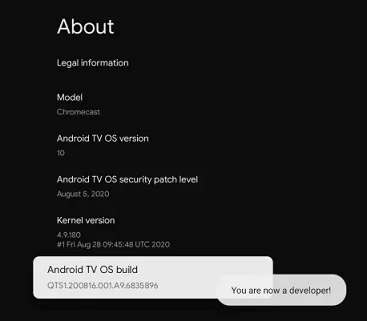
Open Settings → System → About and scroll to Android TV OS Build. Tap the entry 5–7 times until you see “You are now a developer.” This unlocks the sideloading permissions you need.
Install the Downloader application
Use the Google TV search bar to find “Downloader” by AFTVnews. Install it from the Play Store so you can fetch APK files that are not listed publicly.
Allow installation from unknown sources
Navigate to Settings → Apps → Security & Restrictions (or Privacy) → Unknown Sources. Enable the toggle for Downloader so it can install APKs on your behalf.
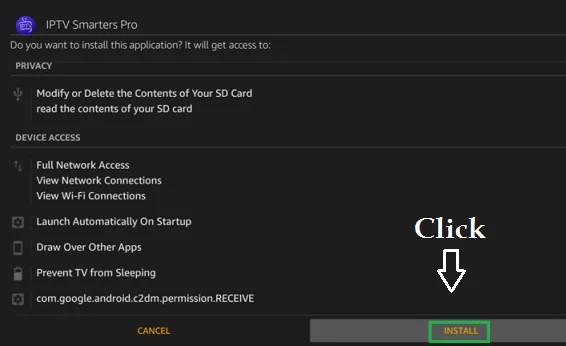
Launch Downloader, input the APK address for GSE Smart IPTV, TiviMate, IPTV Smarters, or any preferred player, and press Go. Once the download finishes, select Install. When the success prompt appears, open the app or return later from your library.
Configure credentials and stream
Open the sideloaded IPTV player, enter your M3U URL or Xtream Codes credentials, refresh the playlist, and begin watching live channels, VOD, or catch-up TV.
Running multiple IPTV apps
Keep spare channel lists or test providers without wiping your primary setup.
- ▹Mix and match providers or playlists to keep backup channel lists ready if one goes offline.
- ▹Compare different IPTV interfaces (GSE, TiviMate, IPTV Smarters, XCIPTV) to find the navigation style you prefer.
- ▹Run specialty playlists (sports, international, kids) in separate apps without overwriting credentials.
- ▹Leverage promotional trials from multiple providers simultaneously as long as your subscription allows concurrent streams.
Advanced tuning tips
Shape your Google TV into a tailored cable-box replacement.
- ▹Favorites & Channel Groups: mark top channels and reorder categories so your lineup mirrors a traditional cable box.
- ▹Parental Controls: many IPTV apps support PIN-locked categories to keep mature content hidden.
- ▹Video Quality Controls: drop to 720p or 30 fps on slower Wi-Fi, or lock in 4K HDR if your connection exceeds 25 Mbps.
- ▹Subtitle and Language Preferences: set default audio tracks plus closed captions for multilingual households.
Troubleshooting quick hits
- ▹Channels not loading: verify that your IPTV subscription is active, re-run a speed test, and refresh the playlist/EPG.
- ▹Buffering: restart the router, reduce stream quality, or connect the Chromecast via Ethernet using the official adapter.
- ▹App crashes: clear cache via Settings → Apps, update to the latest APK build, or reinstall the player.
- ▹Authentication errors: double-check case-sensitive usernames/passwords and confirm the server URL includes the proper port.
Frequently asked questions
Where do I find my M3U URL or Xtream Codes?
Check the welcome email or customer portal provided by your IPTV service. Look for sections labeled Setup, Playlist, or Devices. If you cannot locate the link, contact support with your order number so they can resend the credentials. Avoid sharing these details publicly—they unlock your entire subscription.
Can I install several IPTV apps on one Google TV?
Yes. Google TV lets you install unlimited IPTV players as long as you have storage space. Install each app via the Play Store or sideloading, then enter the correct credentials per app. Confirm how many simultaneous streams your provider allows before logging into multiple apps at the same time.
Why is my IPTV membership not working on Google TV?
Ensure your subscription is active, payments are current, and the credentials are typed exactly. Test your internet (10 Mbps for SD, 25 Mbps for 4K), restart the IPTV app, clear cache, and reboot Google TV. If the issue persists, ask your provider to check server status or reissue credentials.
Conclusion
With Developer Mode enabled, Downloader configured, and your IPTV credentials secured, you can unlock premium IPTV on any Google TV device within minutes. Keep firmware updated, maintain a stable internet connection, and partner with reputable IPTV providers for the most reliable experience.