How to Install IPTV on Roku Complete Guide to IPTV Smarters Setup
Master IPTV streaming on Roku with our step-by-step guide. Navigate Roku's restrictions and unlock thousands of channels.
To stream IPTV on your Roku device, you must navigate its closed-source system constraints and specific installation requirements. Start by enabling developer options using a combination of specific button presses on your remote, then access IPTV players like IPTV Smarters through channel codes. While direct app installations aren't possible on Roku, IPTV Smarters provides a reliable solution. Alternatively, casting from a mobile device is an option for IPTV streaming. Choose legal IPTV services like IPTV USA or Hulu to avoid compliance issues. With this comprehensive guide, you'll uncover all the steps needed for successful IPTV on Roku setup.
How to Install IPTV on Roku: Step-by-Step Guide
Access Your Roku Account Online
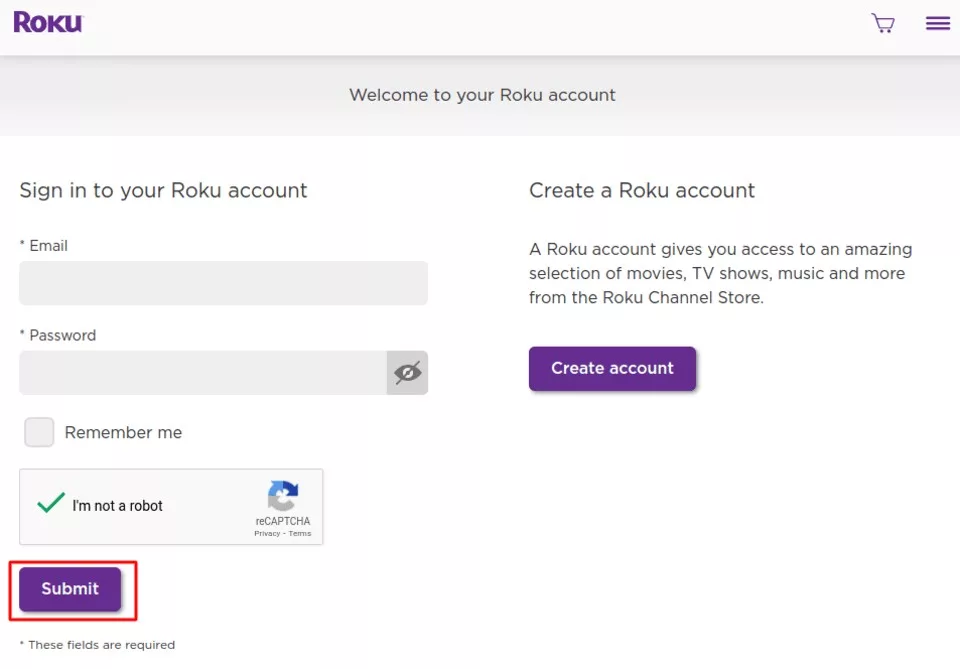
To begin installing IPTV on Roku, launch a web browser on your computer and navigate to my.roku.com. Enter your Roku account username and password, then click 'Submit' to log in.
Navigate to Channel Management
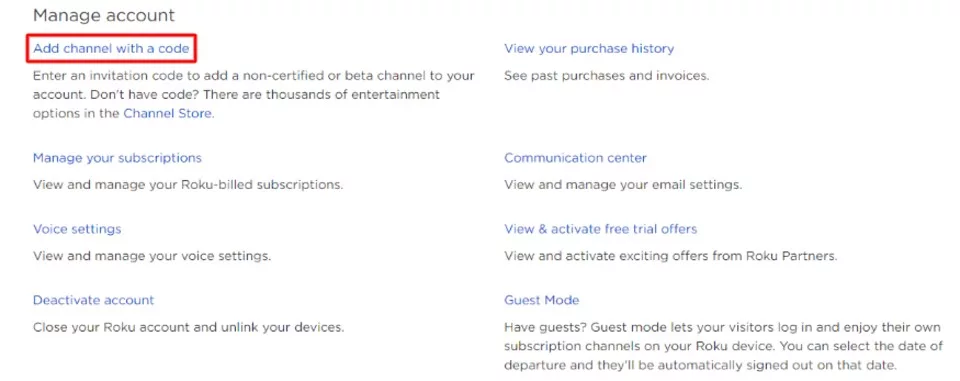
After successfully logging in to your Roku account, go to 'Manage Account' and select 'Add Channel with a Code'. This is where you'll add the IPTV Smarters code to your device.
Add the IPTV Smarters Channel Code
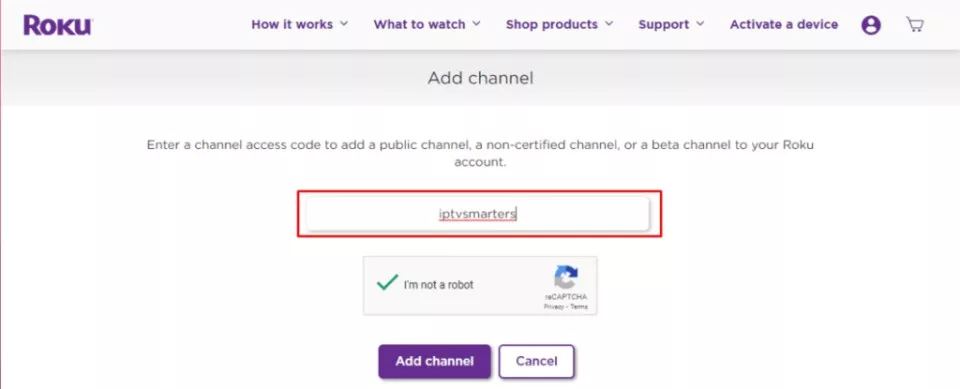
Enter the code 'iptvsmarters' to access the IPTV Smarters app for Roku. This IPTV player is one of the best IPTV apps for Roku and will enable you to stream your IPTV subscription content.
Confirm the Channel Addition
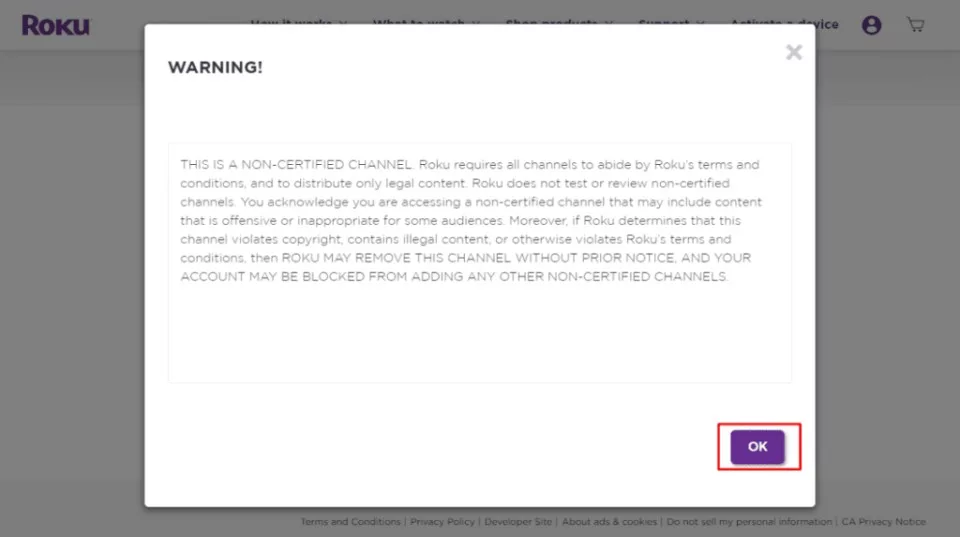
A warning message will appear on your screen. Click 'OK' to proceed with adding the channel to your Roku device.
Finalize Channel Addition
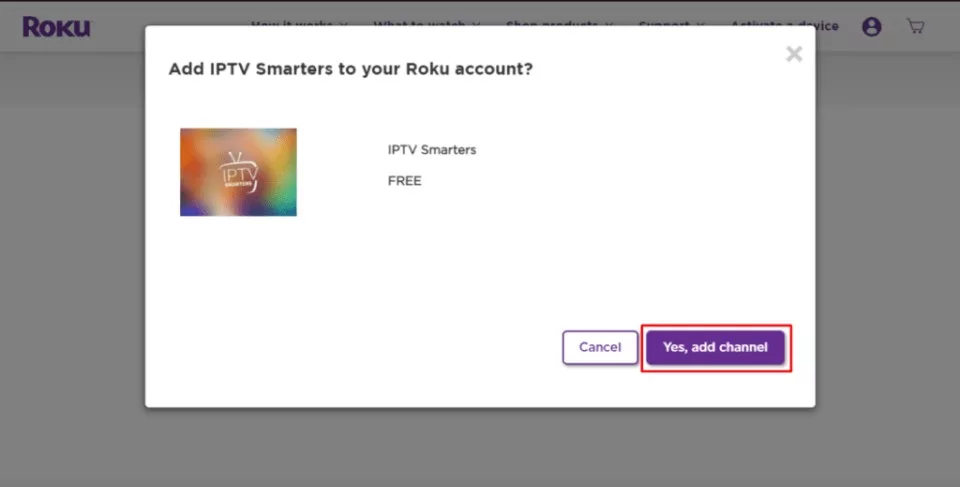
In the following popup window, click 'Yes, Add Channel' to complete the addition of IPTV Smarters to your Roku TV.
Upload the IPTV Smarters Installation File
After adding the IPTV Smarters channel, you'll need to upload the IPTV Smarters package using the provided developer URL. This step is crucial for completing the IPTV installation on Roku.
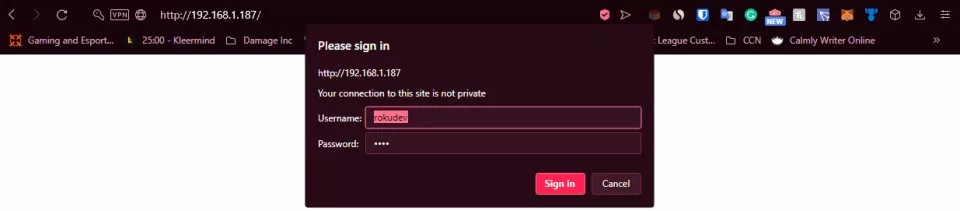
To proceed, open a web browser on your computer and enter the Roku IP address you noted earlier in your browser's address bar.
Sign In to Roku Developer Mode
When prompted for credentials, enter 'rokudev' as the Username and the webserver password you created previously as the Password. Then click 'Sign in' to access the Roku developer interface.
Upload the IPTV Smarters File
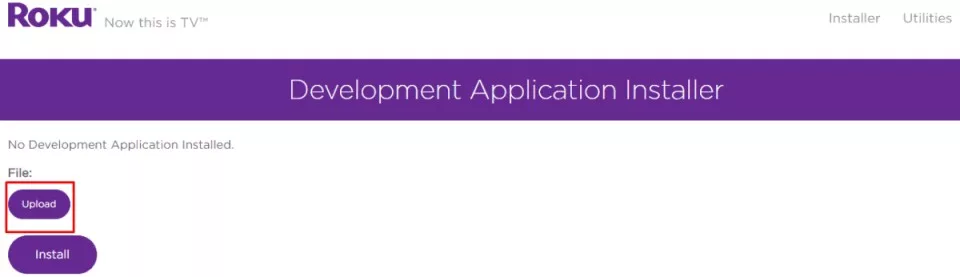
On the next page, locate and click the 'Upload' button to begin uploading your IPTV Smarters package.
- Navigate to the folder where you saved the IPTV Smarters package (for example, your Desktop folder)
- Select the downloaded IPTV Smarters file and click 'Open' to upload it to your Roku device
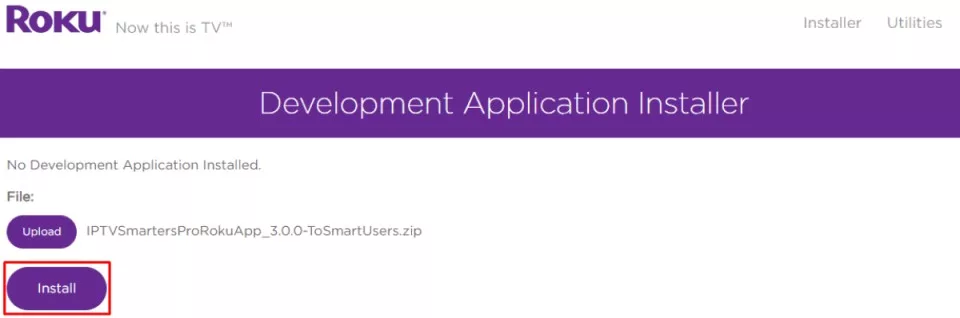
Install the IPTV Smarters Application
Once the file has been uploaded successfully, click the 'Install' button to install the IPTV Smarters app on your Roku device.
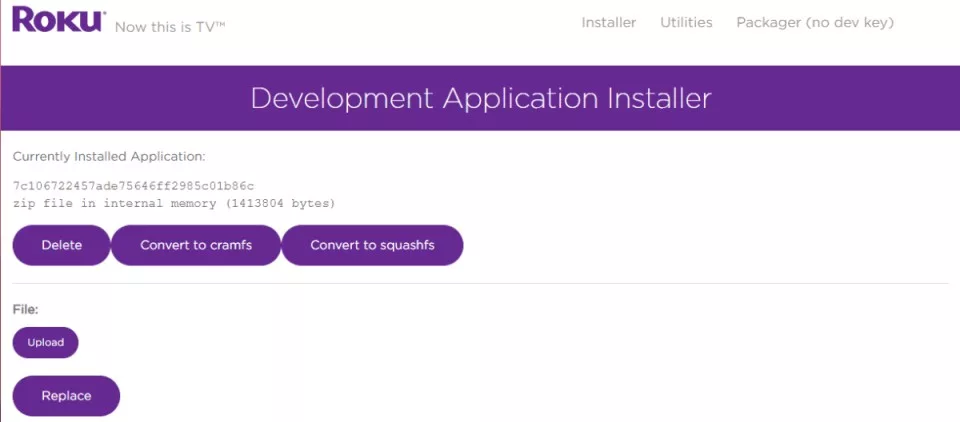
If you see a success confirmation screen, it means you have successfully completed all the IPTV installation steps on your Roku!
Access IPTV Smarters on Your Roku TV
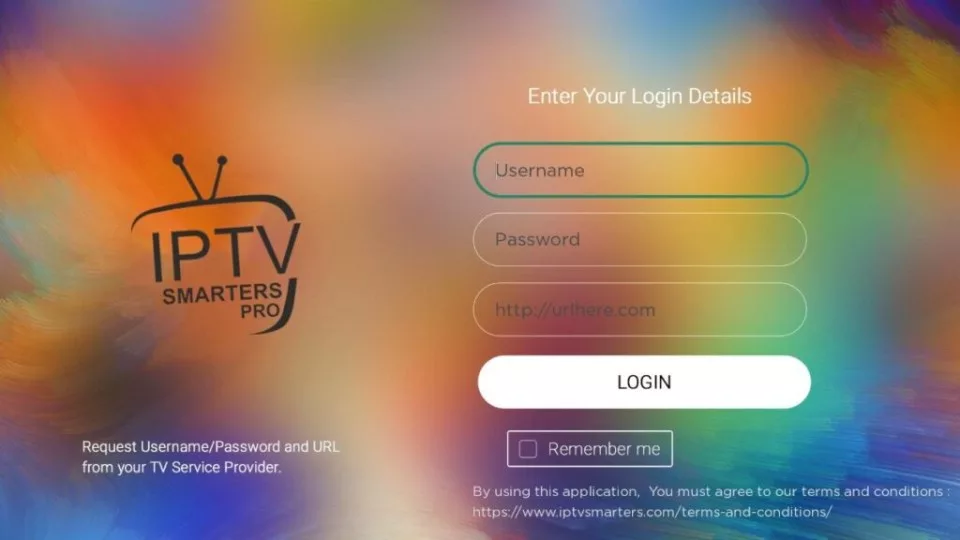
Return to your Roku device or Roku TV, where the IPTV Smarters app will now be visible on your television screen. Simply log in with your IPTV Smarters credentials, and you're all set to start streaming your IPTV channels!
Important Installation Notes for IPTV on Roku
Please keep in mind that Roku imposes significant restrictions on sideloading IPTV apps, so exercise caution when installing IPTV on your Roku device. This guide follows official Roku developer protocols to ensure the safest and most reliable installation process.
Troubleshooting and FAQ for IPTV on Roku
❓ How Can I Stream IPTV on My Roku Device?
To successfully stream IPTV on Roku, explore IPTV streaming methods using compatible devices like your Roku TV or Roku streaming stick. Choose from top IPTV app recommendations and best IPTV services that support Roku. Ensure proper setup of your IPTV subscription and configuration. For optimal live TV streaming, address IPTV channel options and troubleshoot any IPTV issues for seamless viewing. You can also use IPTV players like IPTV Smarters or cast from compatible mobile devices.
❓ What Is the IPTV Plus Player on Roku?
The IPTV Plus player on Roku enhances your IPTV streaming experience by offering comprehensive IPTV benefits like seamless IPTV channel management and high streaming quality. The IPTV Plus app is compatible with Roku devices, supports diverse content libraries, and ensures a smooth installation process with flexible IPTV subscription options. It's designed specifically for users looking for the best IPTV apps for Roku.
❓ Is Roku Considered IPTV?
Roku itself is not considered IPTV; rather, it's a versatile streaming device with the capability to access and run IPTV services. The Roku user interface enhances video quality and content availability through various IPTV subscription plans. However, device compatibility and OS limitations affect how easily you can install IPTV apps on Roku compared to more flexible streaming options. Roku devices are excellent platforms for IPTV streaming when you use compatible IPTV players like IPTV Smarters.
❓ How to Install Smart STB on Roku TV?
You cannot directly install Smart STB on Roku TV due to operating system limitations. Instead, to optimize IPTV streaming performance on your Roku device, consider these alternatives:
- Cast IPTV content from compatible mobile devices to your Roku TV using screen mirroring
- Explore alternative IPTV apps like IPTV Smarters that are officially supported on Roku
- Set up multiple IPTV channels through the official Roku channel management system
- Troubleshoot your user interface and IPTV subscription settings to enhance compatibility
- Research other IPTV player options available for Roku to find the best fit for your needs
Alternative Methods to Stream IPTV on Roku
Casting from Mobile Devices
If you encounter difficulties with direct IPTV installation on Roku, you can stream IPTV content by casting from your smartphone or tablet. This method works with most IPTV apps that support screen mirroring and Chromecast functionality.
Using Legal IPTV Services
Always choose legal and licensed IPTV services when setting up IPTV on Roku. Services like IPTV USA, Hulu, and other authorized providers ensure you avoid compliance issues while enjoying reliable IPTV streaming with high-quality content and customer support.
Conclusion
Installing IPTV on Roku requires following specific steps to work within the device's closed ecosystem, but once configured, IPTV Smarters and other compatible IPTV players provide excellent IPTV streaming experiences. By following this comprehensive guide, you can successfully set up IPTV on your Roku device and enjoy thousands of IPTV channels and on-demand content. Remember to use legal IPTV services and follow Roku's guidelines to ensure the best experience with your IPTV subscription.