How to Install IPTV on NVIDIA Shield Complete Setup & Configuration Guide
This comprehensive guide shows you how to prepare, install, configure, and optimize IPTV apps on your NVIDIA Shield. From first-time hardware setup to playlist login, troubleshooting, and performance tuning—follow each step to unlock smooth live TV, VOD, and series streaming.
Why Choose NVIDIA Shield for IPTV Streaming?
The NVIDIA Shield delivers one of the best IPTV experiences thanks to its Tegra processor, mature Android TV OS, frequent system updates, generous codec support, and direct Google Play access. It supports top IPTV players including IPTV Smarters, TiviMate, Perfect Player, GSE Smart IPTV, and more—without sideload hacks required on limited platforms.
Strengths
Fast decoding • Stable firmware • Wide app ecosystem
You Unlock
Live TV • VOD • Series • Catch-up • EPG • Recording*
*Recording depends on app + provider support.
Set Up NVIDIA Shield Hardware
Physical Connection
- Plug Shield into an HDMI port (preferably a high-bandwidth port supporting HDR / 4K).
- Connect the power adapter to a stable outlet.
- Power on using the remote or device button.
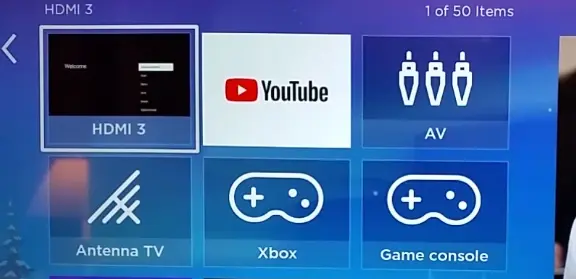
- Switch TV input to the selected HDMI port.
Network Connection
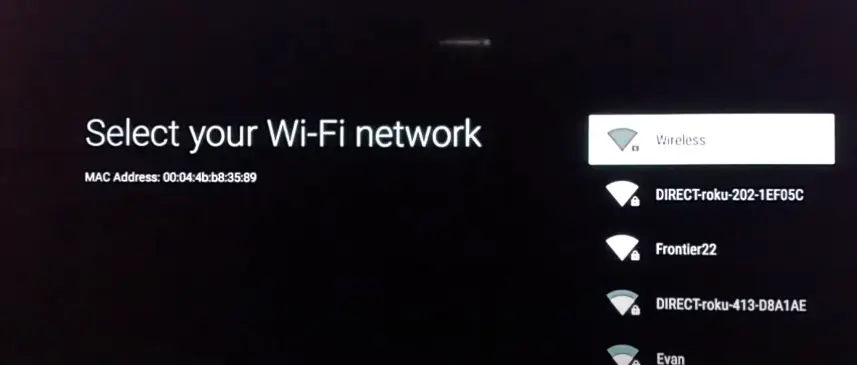
Use Ethernet for best stability; Wi‑Fi (5 GHz) works if signal quality is strong.
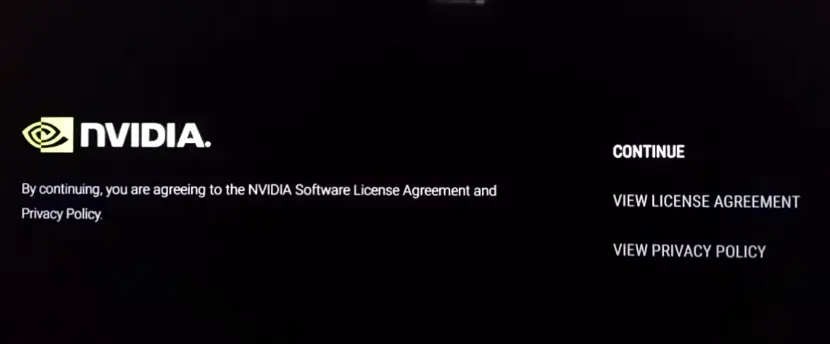
Complete the initial Android TV setup: Google account, terms, device preferences.
Prepare Shield for IPTV Apps
Check for System Updates
- Go to Settings → Device Preferences / System → About.
- Select System Update / Check for Updates.
- Install updates and reboot if prompted.
Enable App Installation (Unknown Sources)
- Open Settings → Security & Restrictions.
- Enable Unknown Sources for IPTV apps or file installers.
- Confirm security warning—only install trusted APKs.
Install Your Preferred IPTV App
Use Google Play Store for official, maintained versions of IPTV players.
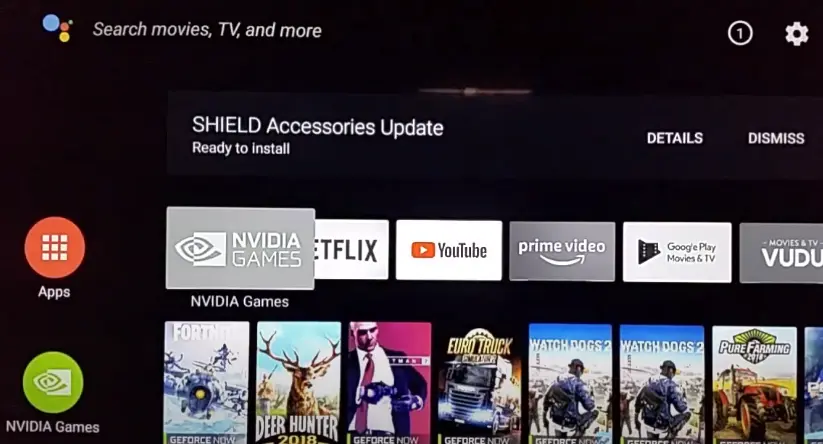
- Open Google Play Store from the Shield home screen.
- Search for: IPTV Smarters, TiviMate, Perfect Player, GSE Smart IPTV, IPTV USA.
- Select the verified listing and click Install.
- Launch via the Play Store or Apps row.
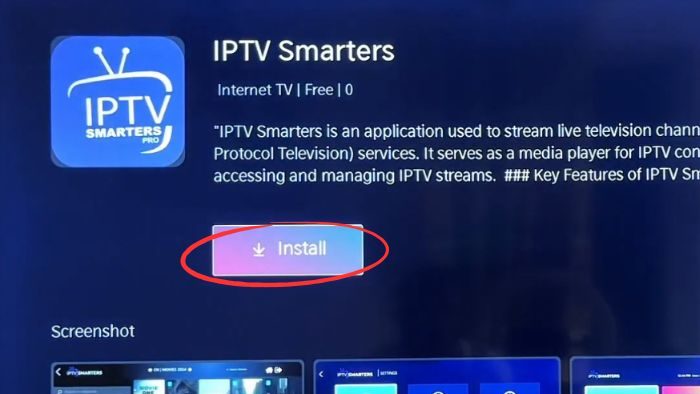
Configure Your IPTV Subscription
Open the IPTV app. Choose the login method provided by your service: M3U Playlist URL, Xtream Codes API, or direct Username/Password.
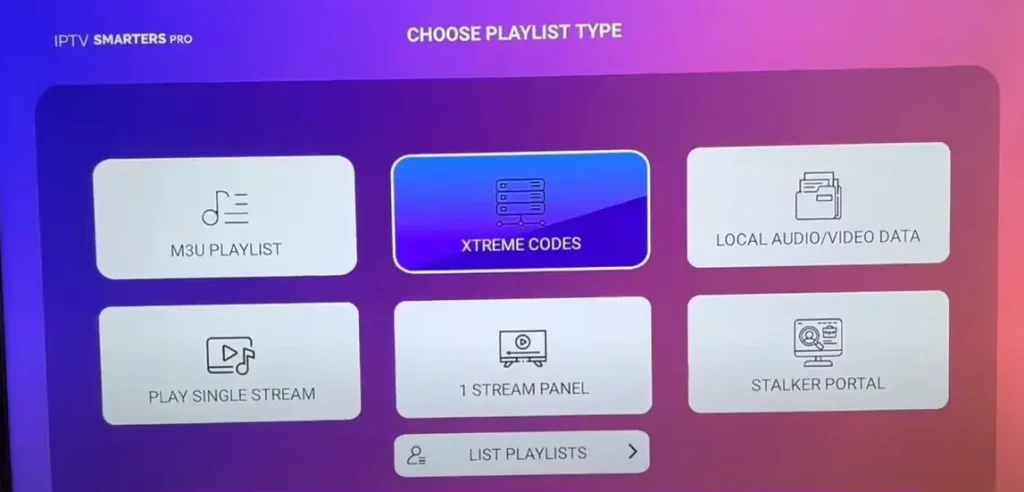
Option 1: M3U Playlist URL
- Select Add Playlist / M3U.
- Paste the exact URL (avoid spaces).
- Confirm and let channels + EPG sync.
Option 2: Xtream Codes API
- Select Xtream Codes / Server.
- Enter Server URL, Username, Password.
- Press Login / Connect.
Option 3: Username & Password
- Enter credentials exactly as given.
- Confirm and allow app to fetch structure.
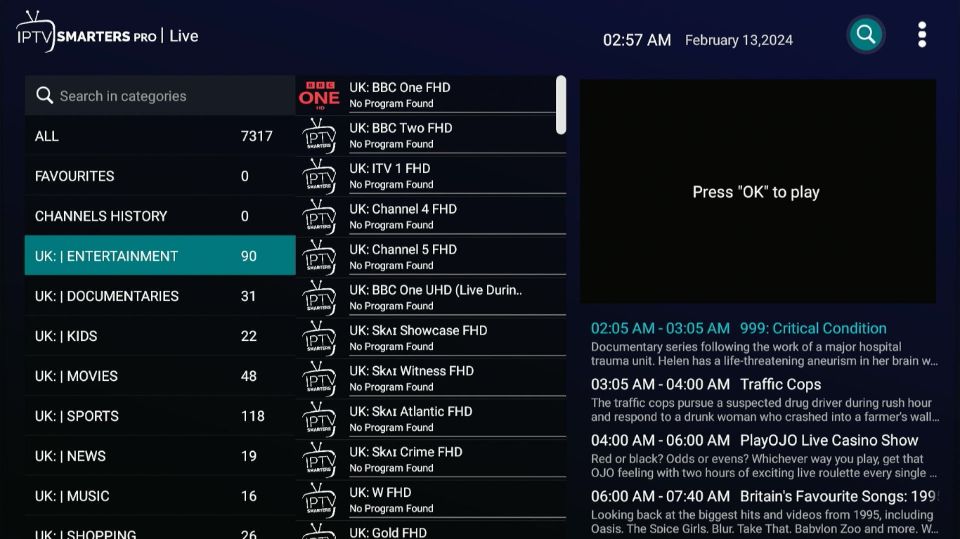
Start Watching IPTV Content
After authentication, channel groups populate: Live TV, Movies (VOD), Series, Sports, Catch-up (if supported). Navigate with the Shield remote; use search, favorites, and category filters for quick access.
Customize IPTV Settings (Optional)
Fine-tune interface, playback, and organization features for a tailored experience.
- Set video quality to match your bandwidth (avoid forced 4K on slow links).
- Enable EPG sync for grid-style schedule navigation.
- Create Favorites lists for frequently watched channels.
- Choose dark mode interface for OLED or dim home theaters.
- Set subtitle default language and fallback options.
- Configure recording (if supported) with adequate free storage.
Optimize IPTV Streaming Performance
- •Use Ethernet instead of Wi‑Fi for lower latency.
- •Maintain 10+ Mbps for HD; 15–25+ Mbps for reliable 4K.
- •Restart the Shield weekly to clear temp processes.
- •Clear IPTV app cache if channel lists slow down.
- •Keep at least 2–3 GB free storage for smooth app updates.
Enhance Privacy & Stability with a VPN
A VPN can reduce throttling, unlock geo-restricted guides, and secure traffic—especially on congested ISP routes.
- •NordVPN – Fast, reliable, optimized for streaming
- •ExpressVPN – Premium speed and security
- •Surfshark – Affordable, unlimited devices
- •CyberGhost – Streaming-focused server presets
Advanced Features & Troubleshooting
Using a VPN
Install a VPN from Google Play, connect to a nearby high-speed server, then launch your IPTV app. Avoid distant regions to minimize buffering.
Updating Apps
Visit Play Store → Manage apps & device → Updates. Enable auto-updates for uninterrupted performance gains and security patches.
Recording IPTV Streams
If supported, initiate recording from the channel or EPG view. Monitor storage capacity and periodically prune old content.
Frequently Asked Questions
Can I use a VPN with IPTV on NVIDIA Shield?
Yes. Install a trusted VPN from the Play Store, connect before opening your IPTV app to reduce throttling, bypass geo-blocks, and protect privacy.
How do I update my IPTV app?
Open Google Play Store → Manage apps & device → Updates available, or enable auto-update. Some apps may also show an in-app update prompt.
Is IPTV legal on NVIDIA Shield?
Using IPTV apps is legal. Legality depends on licensed content sources. Always choose reputable, licensed providers and avoid suspicious “all channels” services.
Can I record IPTV streams?
Only if your IPTV app and provider support recording. Check settings for a Record or DVR feature; ensure enough local or attached storage.
Are there free IPTV alternatives?
Yes—legal ad-supported apps like Pluto TV, Tubi, XUMO, Plex, Samsung TV Plus, The Roku Channel, and Freevee provide free content.
Conclusion
Installing IPTV on NVIDIA Shield takes only a handful of steps: connect hardware, update firmware, install a trusted IPTV app, authenticate via M3U or Xtream Codes, and optimize network + settings. Maintain updates, use reputable providers, and leverage Ethernet or a high-quality VPN for a stable, high-definition streaming experience.