Set Up IPTV on Dreamlink T1 / T1+ / T6 Complete Portal Configuration Guide
Follow this walkthrough to connect your Dreamlink receiver to your IPTV provider via DreamOnline (DOL), load portal URLs, and start streaming live TV, movies, and on-demand content in minutes.
Dreamlink receivers streamline IPTV viewing by pairing dedicated hardware with the DreamOnline (DOL) portal system. No sideloading or emulators required—just connect, enter portal details, and enjoy reliable channel playback.
Why Dreamlink?
Stable dedicated IPTV hardware with fast channel zapping
What you need
- • HDMI cable linking the Dreamlink receiver to an open TV port
- • Original power adapter connected to a stable outlet or surge protector
- • Reliable internet connection (Ethernet recommended, Wi-Fi optional)
- • Dreamlink remote with working batteries
- • Portal URL and credentials from your IPTV provider
Connect and power on your Dreamlink receiver
Hook up HDMI, power, and internet. Ethernet offers the strongest IPTV stability, but Wi-Fi works if the router is nearby.
- Plug HDMI from the Dreamlink box into an available TV port.
- Attach the power adapter and turn on the receiver.
- Connect to Wi-Fi or insert an Ethernet cable directly into your router.
- Wait for the boot logo and confirm the home screen appears.
Open System Settings and locate the Servers menu
Use the remote to access Dreamlink settings, then dive into the portal configuration area.
- Press the Settings icon on the home screen.
- Choose System Settings for device-level options.
- Select Servers or Portal Configuration to manage IPTV portals.

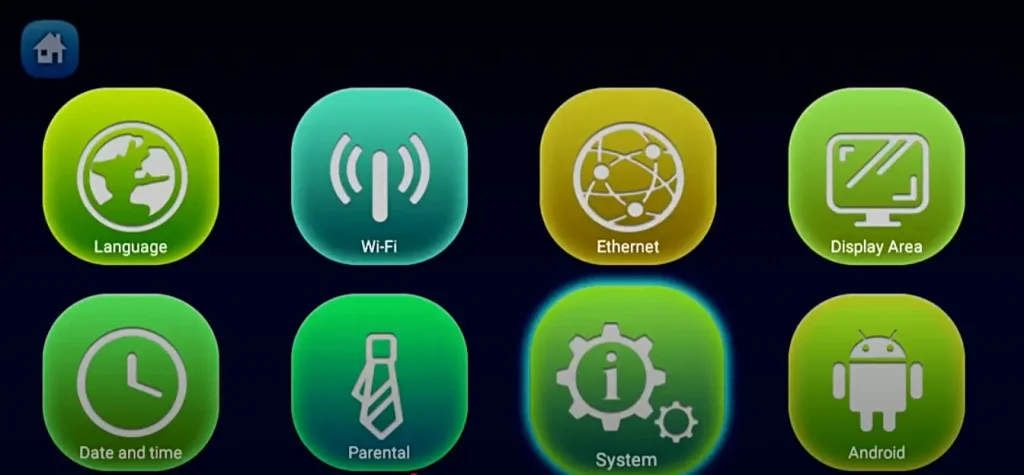
Enter your IPTV portal details
Portal 1 typically hosts your main IPTV subscription. Portal 2 is great for backups or specialty channel lists.
- Highlight Portal 1 and press OK.
- Input the Portal URL supplied by your IPTV provider (example: http://provider.com:8080).
- Assign an easy label in the Portal Name field.
- Review for typos, then hit OK or Save.
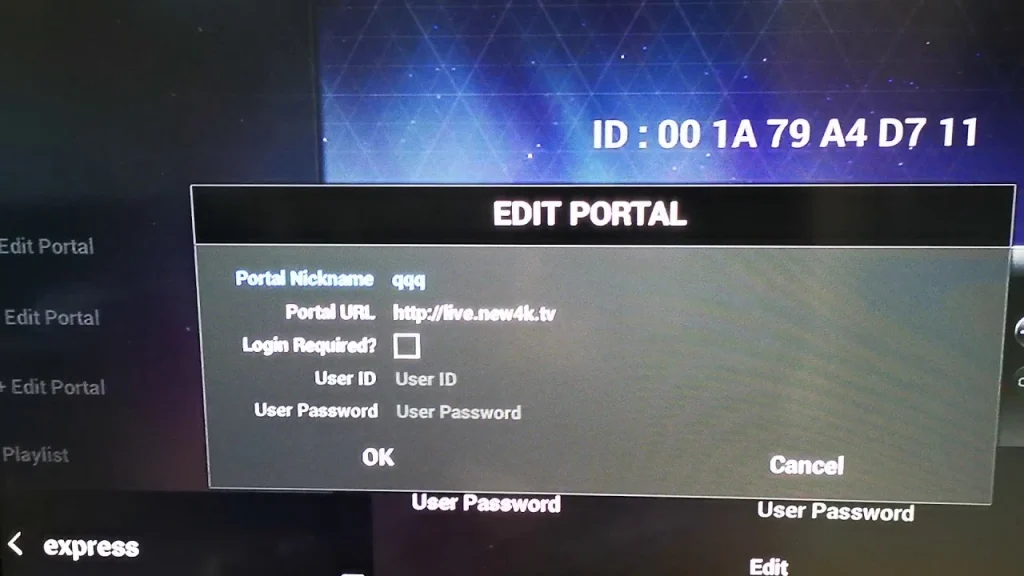
- Copy/paste (or carefully type) the portal URL exactly as provided, including :8080 or other port values.
- Use memorable portal names such as "Main IPTV" or the provider brand so switching stays intuitive.
- Double-check for trailing spaces before saving—extra characters can block the portal handshake.
- If you maintain multiple IPTV subscriptions, configure Portal 1 for the primary and Portal 2 for backups.
Restart the receiver
Rebooting initiates a clean handshake with your IPTV provider.
- Return to System Settings.
- Select Reboot or Restart.
- Wait 30–60 seconds for the box to power cycle and reload the DOL portal.
Stream live TV, movies, and series
After reboot, Dreamlink should load your IPTV channels automatically. Use the remote to browse categories, open the EPG, and jump into catch-up content when available.
- Live TV – channel groups organized by genre or region.
- VOD / Movies – on-demand films from your provider.
- Series – episodic content with resume support.
- Categories – filtered lists for languages, sports, kids, and more.
Optimize Dreamlink performance
- •Prefer Ethernet over Wi-Fi whenever possible to eliminate packet loss.
- •Maintain at least 5–10 Mbps per stream; 15+ Mbps if your provider offers 4K content.
- •Place the Dreamlink box in a ventilated area to avoid thermal throttling during long sessions.
- •Restart the receiver weekly to clear cache and maintain fast channel zapping.
- •Connect through a surge protector to guard against unexpected power drops.
Advanced features to explore
- Enable EPG in Settings to view schedules and set reminders.
- Adjust video resolution (720p, 1080p, or 4K on supported models).
- Modify audio output (Stereo, Dolby, passthrough) to match your sound system.
- Configure Portal 2 to maintain a backup IPTV subscription.
- Check for firmware updates to gain new features and security fixes.
Troubleshooting & FAQ
How do I obtain the portal URL?
Check the IPTV provider’s welcome email, account dashboard, or setup guide. If missing, contact support. Always include http/https plus the port number (e.g., :8080).
Can I run multiple IPTV services?
Yes. Dreamlink devices typically offer two portal slots. Configure Portal 1 and Portal 2 with separate URLs, then switch providers directly from the DOL home screen.
Why is IPTV not working on my Dreamlink?
Re-verify the portal URL, confirm your internet connection, ensure your subscription is active, and reboot the receiver. If issues persist, contact your IPTV provider for account checks.
Do Dreamlink boxes support 4K?
Dreamlink T6 models generally support up to 4K (depending on firmware), while T1/T1+ focus on 1080p. Your IPTV provider must also deliver 4K streams, and you need sufficient bandwidth.
Can I record programs?
Some Dreamlink models support recording to external USB drives. Refer to your receiver manual and ensure your IPTV provider allows recordings.
Is IPTV on Dreamlink legal?
The hardware is legal. Always use properly licensed IPTV services that hold content rights and comply with your local regulations.
Alternative IPTV hardware
- •MAG series receivers – comparable dedicated IPTV boxes with strong community support.
- •Formuler Z series – Android-based IPTV devices with MyTVOnline.
- •Fire TV Stick or Google TV – versatile streaming sticks that can install IPTV apps.
- •Smart TVs (Samsung, LG) – run native IPTV apps without extra hardware.
- •Android TV boxes – customizable options for advanced users.
Conclusion
Dreamlink boxes keep IPTV setup simple: connect the receiver, input your portal URL, reboot, and start watching. Maintain a strong internet connection, keep firmware updated, and use reputable IPTV services to enjoy reliable streaming on T1, T1+, and T6 hardware.